
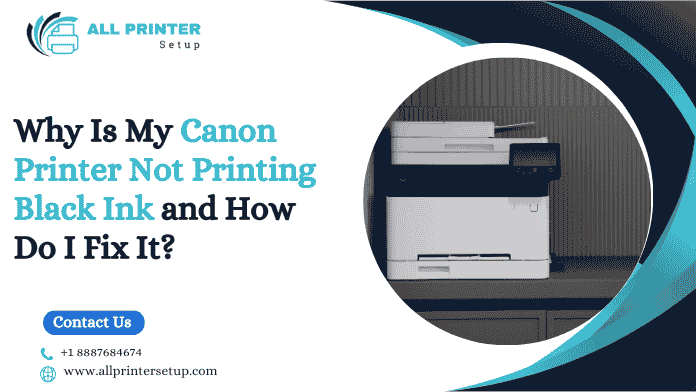
Printers are essential for both home and office use, and Canon printers are especially valued for their reliability and print quality. But even reliable printers can experience issues—and one of the most frustrating is when your Canon printer is not printing black ink. You might see faded text, streaks, or completely blank pages, even though you just replaced the ink cartridge.
If this sounds familiar, don’t worry. This guide will walk you through the most common causes and the best Canon printer troubleshooting steps to fix the issue. Whether you’re seeking quick Canon printer help or trying to understand the problem in detail, you’re in the right place.
Why Your Canon Printer Isn’t Printing Black Ink
Several factors can prevent black ink from printing correctly. Here are the most common:
1. Low or Empty Black Ink Cartridge
A nearly empty black ink cartridge often leads to weak or missing black prints. Even if the display doesn’t show “empty,” the cartridge may not have enough ink left for proper printing.
2. Clogged Printhead
Clogged printheads are the #1 cause of Canon printers failing to print black ink. If the ink dries inside the nozzles, it restricts flow.
3. Air Bubbles in the Cartridge
Trapped air inside the cartridge can interfere with ink flow, resulting in faint or missing prints.
4. Incorrect Cartridge Installation
If the cartridge is not inserted correctly or if protective tape is still attached, the printer cannot pull ink.
5. Non-Genuine or Expired Ink
Third-party ink is inexpensive but may cause buildup inside the printhead, leading to printing issues.
6. Wrong Printer Settings
If “Grayscale,” “Print Using Color,” or “Draft Mode” is turned on, the printer may not use black ink at all.
7. Dirty or Faulty Electrical Contacts
If the electronic contacts between the cartridge and printer are dirty or damaged, it can block ink communication.
How to Fix a Canon Printer Not Printing Black Ink
Below are the most effective Canon printer troubleshooting methods to resolve the issue.
1. Check Your Black Ink Level
Before anything else:
- Open the printer’s ink level display
- Check whether the black ink is low or empty
- Replace the cartridge with a genuine Canon ink cartridge
Using genuine ink is one of the best ways to prevent printing problems in the future.
2. Reinstall the Black Cartridge Properly
Follow these steps:
- Turn off the printer.
- Open the ink access door.
- Remove the black cartridge.
- Ensure the orange tape and protective film are fully removed.
- Reinsert the cartridge until it locks into place.
- Close the printer and restart it.
Improper installation is a surprisingly common reason black ink fails to print.
3. Run an Automatic Printhead Cleaning
Canon printers have built-in cleaning functions.
Steps:
- Navigate to Settings → Maintenance.
- Choose Cleaning.
- If the issue persists, choose Deep Cleaning.
- Print a Nozzle Check to confirm improvement.
Repeat deep cleaning only 2–3 times to avoid ink waste.
4. Perform Manual Printhead Cleaning (Advanced Method)
If your printer still isn’t printing black ink, the printhead may be heavily clogged.
How to clean it manually:
- Remove the printhead (if your Canon model allows).
- Soak it in warm, distilled water for 10–15 minutes.
- Gently shake to remove dried ink.
- Allow it to dry completely before reinstalling.
- Rerun a Nozzle Check.
This method often fixes long-term clogging issues.
5. Clean the Cartridge’s Electronic Contacts
Dirty contacts can interrupt signals between the printer and the ink cartridge.
Steps:
- Turn off the printer.
- Remove the black ink cartridge.
- Use a microfiber cloth or cotton swab with rubbing alcohol.
- Gently clean the gold metal contacts.
- Reinstall the cartridge once dry.
Clean contacts help restore proper ink communication.
6. Adjust Your Printer Settings
Sometimes the printer is simply using the wrong mode.
Check the following:
- Disable Grayscale
- Disable Print Using Composite Colors
- Select Plain Paper
- Set printing to Standard or High Quality, not Draft
Incorrect settings can make it seem like your Canon printer is out of black ink even when it’s not.
7. Update or Reinstall Printer Drivers
Outdated or corrupted drivers may cause black ink printing issues.
Steps:
- Visit Canon’s official support website
- Search for your printer model
- Download and install the latest drivers
If needed, uninstall and reinstall your printer device entirely.
8. Use Genuine Canon Ink Cartridges
Cheap third-party inks are known to:
- Cause clogs
- Create poor print quality
- Fail to communicate properly with the printer
Switching to genuine ink often fixes the issue immediately.
9. Power Reset Your Canon Printer
A simple reset can sometimes solve ink recognition issues.
Reset Steps:
- Turn off the printer.
- Unplug it completely.
- Wait 2 minutes.
- Plug in and restart.
This refreshes the internal printing system.
10. Replace the Printhead (If Necessary)
If none of the above steps work, your printhead may be damaged.
Signs include:
- No improvement after multiple cleanings
- Consistent missing black lines on nozzle checks
- Repeated printhead error messages
You may need to contact Canon support for professional service.
Prevention Tips to Avoid Black Ink Issues
Once your printer is working again, follow these tips to prevent future problems:
- Print a test page weekly to keep ink flowing
- Turn off the printer using the Power button
- Store the printer in a stable, dust-free environment
- Use Canon-approved ink cartridges
- Perform a monthly nozzle check
These habits help extend the life of your printhead and maintain print quality.
Final Thoughts
A Canon printer not printing black ink is a common issue, but it’s usually easy to fix with the right steps. Whether the problem is low ink, clogged nozzles, incorrect settings, or outdated drivers, following the troubleshooting tips above will help restore crisp, clear black prints.
If you still need assistance or want real-time support, you can always reach out for Canon printer help via their support page. If you also use Epson devices, you can explore Epson Online Chat Support for quick troubleshooting responses.
Was this article helpful?
.png)
.png)
_1728455153.png)
